New Gamer
Create New Gamer Account
Used for creating new player accounts, focusing on selecting the account type and entering the necessary basic registration information.
1. Create New Member
1.1 Creating a Guest Account
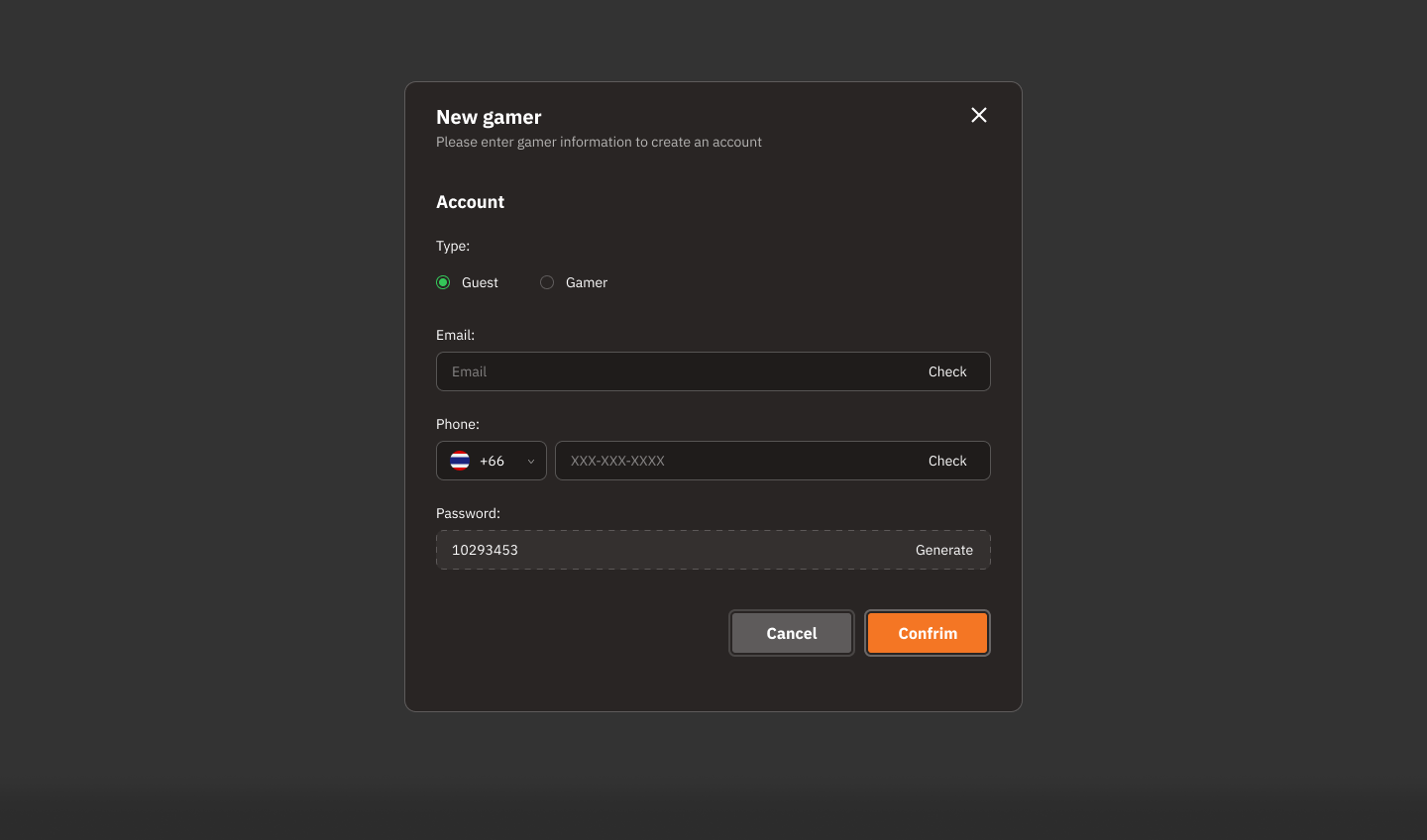
Registration Steps
Select the "Guest" account type.
Enter Email (if available) or Phone number (if available).
Press "Check" to verify the accuracy.
Confirm the password (or press "Generate" if needed).
Click "Confirm" to complete account creation.
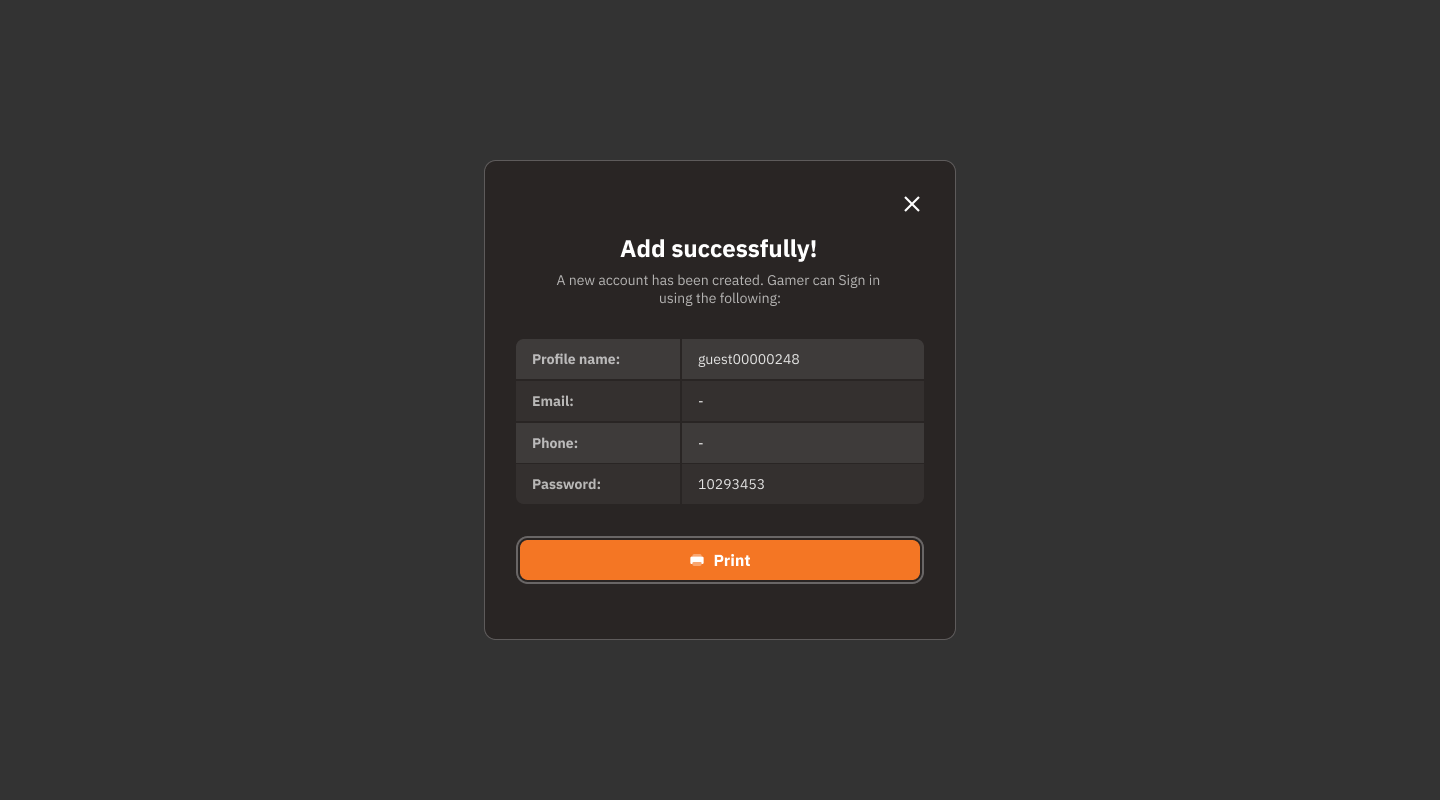
Press "Print" to print this information for the player to keep.
1.2 Creating a Gamer Account
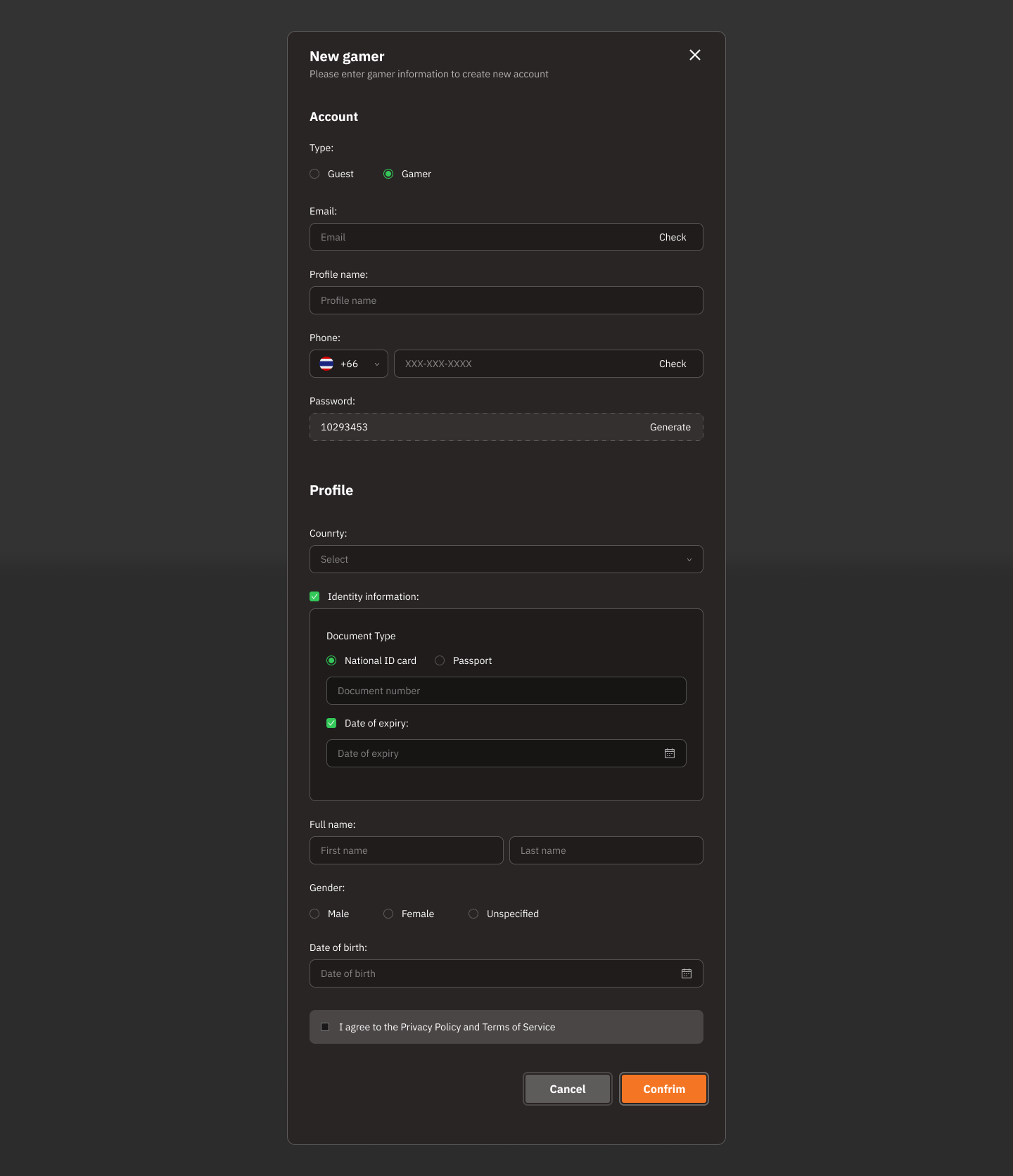
Form for creating a new player account as a Gamer.
Account
Type:
Can be selected between "Guest" or "Gamer".
In the example, "Gamer" is selected.
Email:
Field for entering the email address.
Has a "Check" button to verify if the account already exists.
Profile Name:
Field for setting the player's profile name.
Phone:
Field for entering the phone number, with a verification system ("Check").
Password:
Displays the password generated by the system (can be changed later).
Profile
Country:
Field for selecting the player's country.
Identity Information:
Document Type: Select between National ID card or Passport.
Document Number: Enter the identity document number.
Date of Expiry: Set the document expiration date (if applicable).
Full Name:
Field for entering the full name.
Gender:
Select between Male, Female, or Unspecified.
Date of Birth:
Field for entering the date of birth.
Terms & Confirmation
I agree to the Privacy Policy and Terms of Service:
Users must check to agree to the terms of service.
Buttons:
Cancel: Cancel account creation.
Confirm: Confirm and create a new account.
2. Email Verification
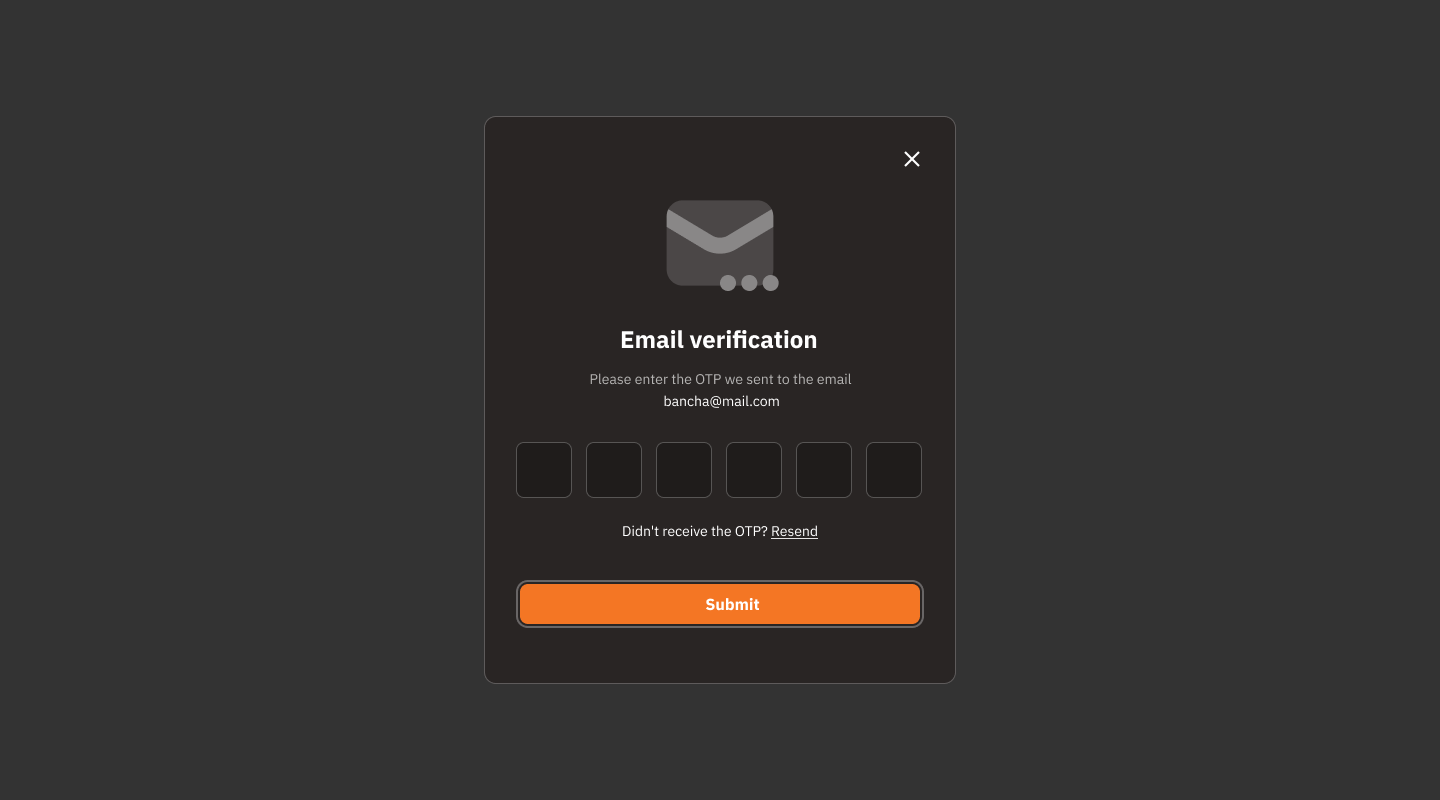
Usage Steps
Enter OTP:
6 fields for users to enter the OTP code.
The OTP code will be a number or alphanumeric code sent to the email.
"Resend" Link:
If the user does not receive the OTP, they can click this link to send a new code.
"Submit" Button:
Button for submitting the OTP code to proceed.
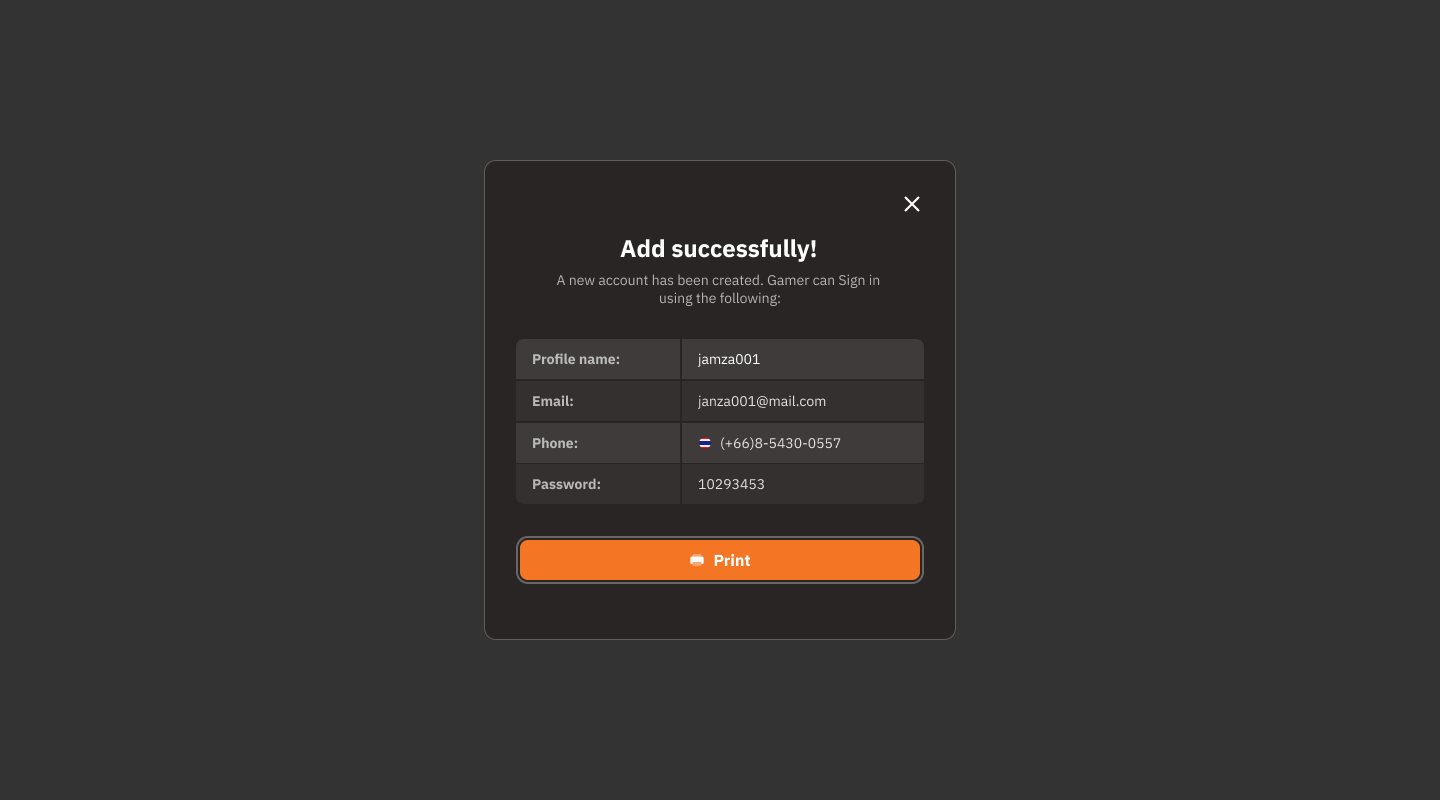
Press "Print" to print this information for the player to keep.
Instructions
If you do not receive the email, check your Junk mail folder.
If you do not receive it within the specified time, click the "Resend" link to get a new code.
After entering the complete code, press the "Submit" button to confirm and continue with the next step.
Was this helpful?
Still need help? Ask the team