Shift details
1. Shift Details - Overview
1. Shift Time Information
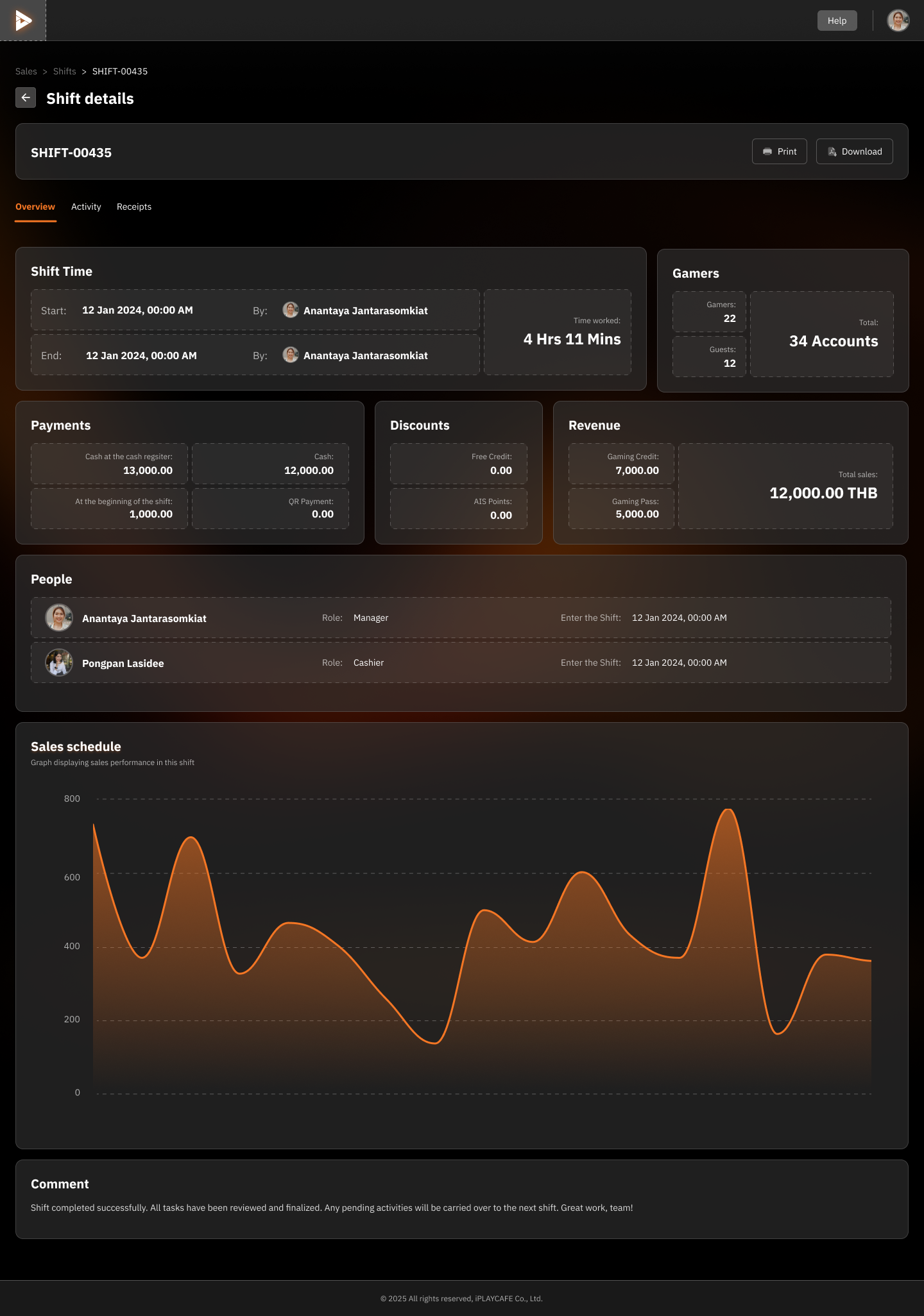
This section displays details about the start and end times of the shift, including the names of the associated managers or staff and the total working time of the shift.
Example:
Start: Shift start time is 12 Jan 2024, 00:00 AM.
End: Shift end time is 12 Jan 2024, 00:00 AM.
By: Name of the person who started or ended the shift, such as Anantaya Jantarasomkiat.
Total work time: 4 hours 11 minutes.
Usage:
Used to record and verify the working hours of staff in each shift to ensure they have worked the required time.
2. Gamers
This section displays the number of users during the shift, divided into two categories:
Gamers: Players who have registered accounts.
Guests: Players who have not registered.
Example:
Gamers: 22 people.
Guests: 12 people.
Total Accounts: Total of 34 accounts.
Usage:
Used to track the number of users during each time period and to analyze player usage behavior, such as the number of new registrations or players who choose to use Guest accounts.
3. Payments
All payment information during the shift displays details about cash in the cash register and collected cash.
Example:
Cash (Collected): The amount of money received from customers during the shift is 12,000.00 THB.
Cash at the shift start: The initial amount in the cash register is 1,000.00 THB.
QR-codes: Payments via QR-codes (in this example, there are none, 0.00 THB).
Usage:
Used to verify all income and expenses during that time period and used as a reference for closing the cash balance for each shift.
4. Discounts
This section displays details about discounts given during the shift, such as free play credits or points from special systems (e.g., AIS Points).
Example:
Free Credit: Credits given to customers for free (in this example, 0.00 THB).
AIS Points: Points (not yet available in the system).
Usage:
Helps track the distribution of discounts or promotions in each shift to see how many discounts have been used and analyze whether they have an impact on sales.
5. Revenue
Displays revenue received from various activities in the shift, such as selling Gaming Credit or Gaming Pass.
Example:
Gaming Credit: Revenue from selling play time is 7,000.00 THB.
Gaming Pass: Revenue from selling game packages is 5,000.00 THB.
Total Sales: Total sales are 12,000.00 THB.
Usage:
Used to track revenue and analyze the source of revenue in each shift, such as whether more customers are buying Gaming Passes.
6. People (Staff in this shift)
This section displays the names of staff working in the shift, along with their roles and the time they started working in the shift.
Example:
Anantaya Jantarasomkiat Manager 12 Jan 2024, 00:00 AM
Pongpan Lasidee Cashier 12 Jan 2024, 00:00 AM
Usage:
Used to track who is responsible for work in each shift and to see the work start times of each staff member.
7. Sales Schedule (Sales Graph)
This graph shows the sales trend in each time period of the shift to help analyze which time periods have the highest sales and which time periods have the lowest sales.
Example:
The graph shows a maximum increase to approximately 800 sales units and a minimum decrease to approximately 100 sales units.
Usage:
Used to plan sales improvements or promotional activities during low-sales periods and to focus on high-traffic periods to generate more revenue.
8. Comment
This section is a record of comments or messages about the shift, such as work success, problems encountered, or work suggestions.
Example:
"Shift completed successfully. All tasks have been reviewed and finalized. Any pending activities will be carried over to the next shift. Great work, team!"
Usage:
Used as a summary record of the shift's work to track operations or provide guidance to the team in the next shift.
2. Shift Details - Activity
1. Activity Timeline
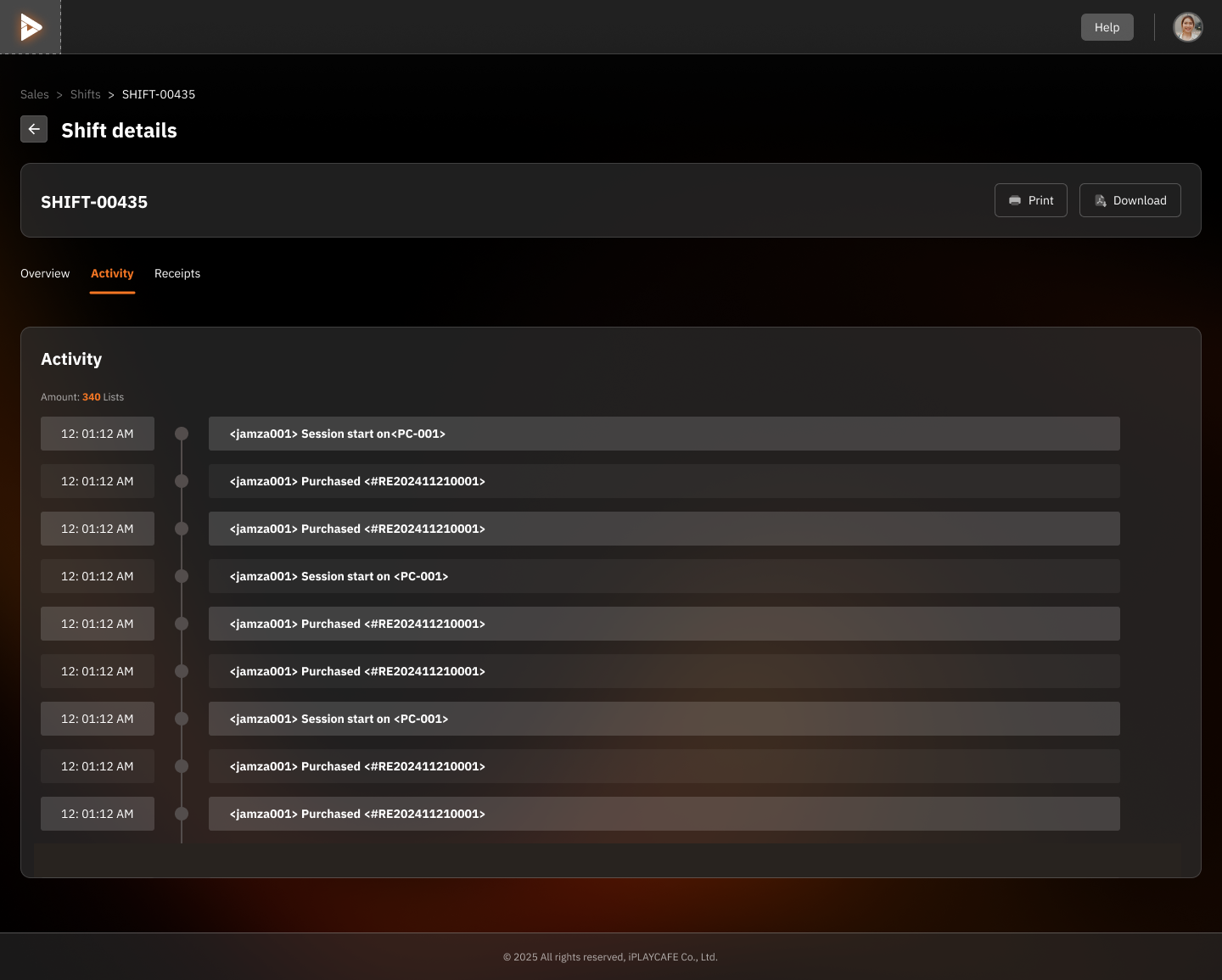
This section displays a list of all activities that occurred during the shift, sorted by time. The data is presented in a timeline format for easy tracking of activity details.
Example:
12:01:12 <jamza001> Session start on <PC-001>
12:01:12 <jamza001> Purchased <#RE202411210001>
12:01:12 <jamza001> Purchased <#RE202411210001>
<jamza001>: Profile name of the player who performed the activity.
Session start on <PC-001>: Indicates the start of a session on computer number 001.
Purchased <#RE202411210001>: Purchase of goods/services with the associated receipt number.
2. Amount: 340 Lists
The number "340 Lists" represents the total number of activity entries recorded during that shift.
Usage:
Used to check the volume of activities and to review all details. If there are a large number of entries, a search function may be needed to filter the data.
3. Print and Download Functions
The "Print" and "Download" buttons in the top right corner allow administrators to:
Print: Print a list of all activities in the shift as a document.
Download: Download a file (e.g., PDF or Excel) containing all activity entries for future use or data analysis.
Example Activities in the Activity Timeline
Session Start
Details: Customer <jamza001> started a session on computer <PC-001>.
Usage: Used to check when and on which computer a customer's session started.
Purchased
Details: Customer <jamza001> purchased goods or services (e.g., Gaming Credit or Gaming Pass).
Usage: Used to track customer sales and to check receipt numbers (#RE202411210001) for payment details.
Usage of This Section
Analyze Activities: Managers can use the timeline to analyze which activities are most frequent during the shift (e.g., purchasing Gaming Credit or starting new sessions).
Investigate Issues: If there are issues or questions about a customer, such as incorrect purchases, the timeline can be reviewed to determine the cause.
Increase Transparency: Used as evidence to record all activities in each shift.
3. Shift Details - Receipts
1. Receipts Section
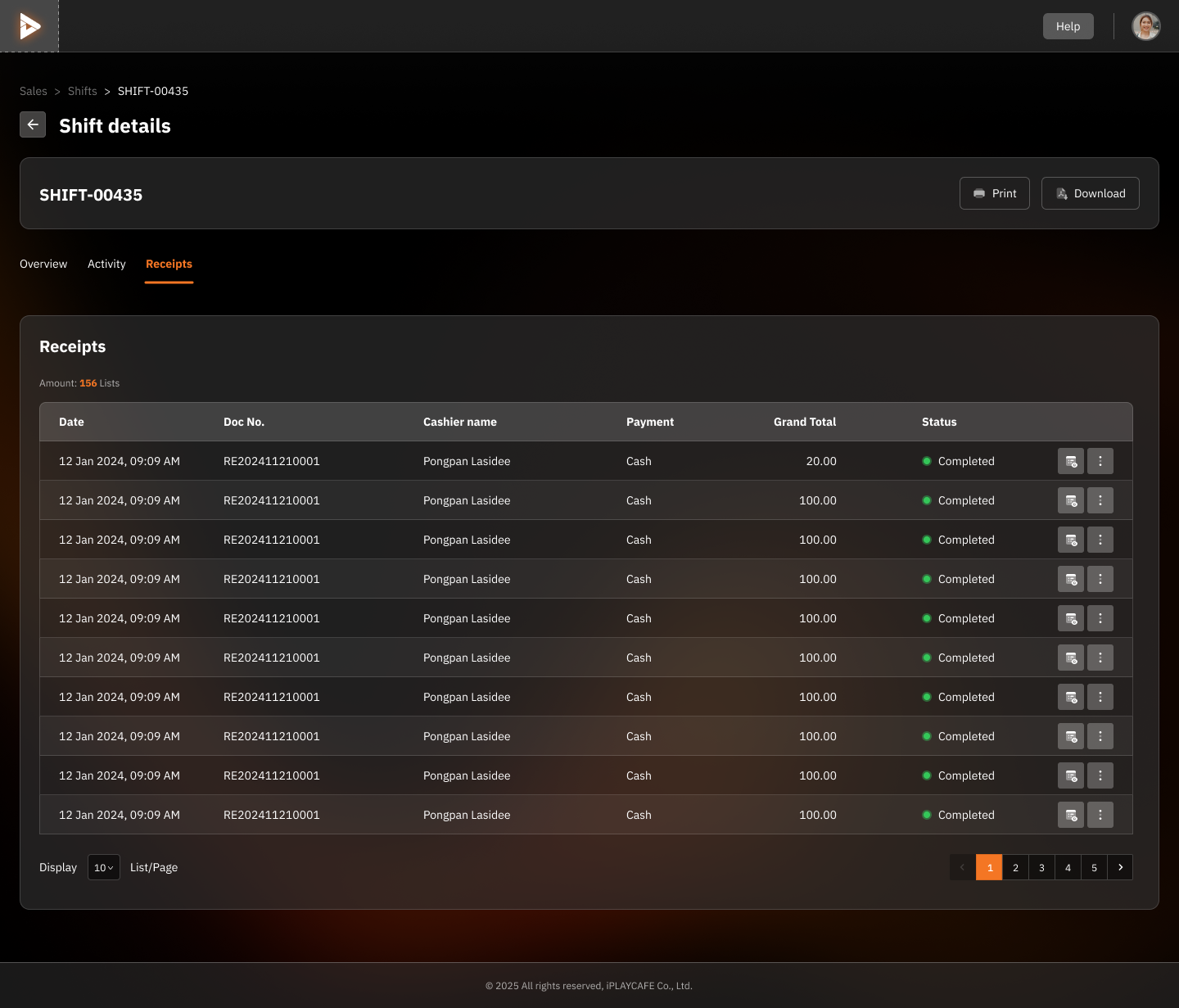
This section displays all receipt information related to the shift period, including key details such as date, document number, cashier name, payment method, total amount, and receipt status.
2. Header (Table Header)
Components:
Date: Receipt issuance date and time
Doc No.: Receipt number (used for reference)
Cashier Name: Name of the person who issued the receipt
Payment: Payment method (e.g., Cash, QR Payment)
Grand Total: Total amount listed on the receipt
Status: Receipt status, e.g., Completed
3. Amount (Number of Entries)
The number of entries indicates how many receipts were issued during the shift period. For example, "Amount: 156 Lists" means 156 receipts were issued in this shift.
4. Table Usage
Example:
Date: 12 Jan 2024, 09:09 AM
Doc No.: RE202411210001
Cashier Name: Pongpan Lasidee
Payment: Cash
Grand Total: 20
Status: Completed
Doc No. (RE202411210001): Unique receipt number, used for searching or referencing information.
Payment (Cash): Indicates the payment method used, e.g., cash or QR payment.
Grand Total (20.00): Total amount on the receipt.
Status (Completed): Indicates whether the receipt was completed.
5. Additional Functions
Print and Download
Print: Print all receipts listed.
Download: Download all receipt data as a file (e.g., PDF or Excel).
More Menu Button
For each receipt (button ...), there are additional functions, such as:
View receipt details.
Print individual receipt.
Edit or cancel receipt (depending on permissions).
6. Usage of This Section
Verify Shift Sales: Managers can view all receipt data to analyze sales during the shift period.
Troubleshoot Issues: If there are errors with receipts, such as customer complaints, related receipts can be found using the Doc No.
Reports and Records: Use the "Print" or "Download" functions to create a summary sales report for the shift.
Was this helpful?
Still need help? Ask the team