Upgrade Gamer
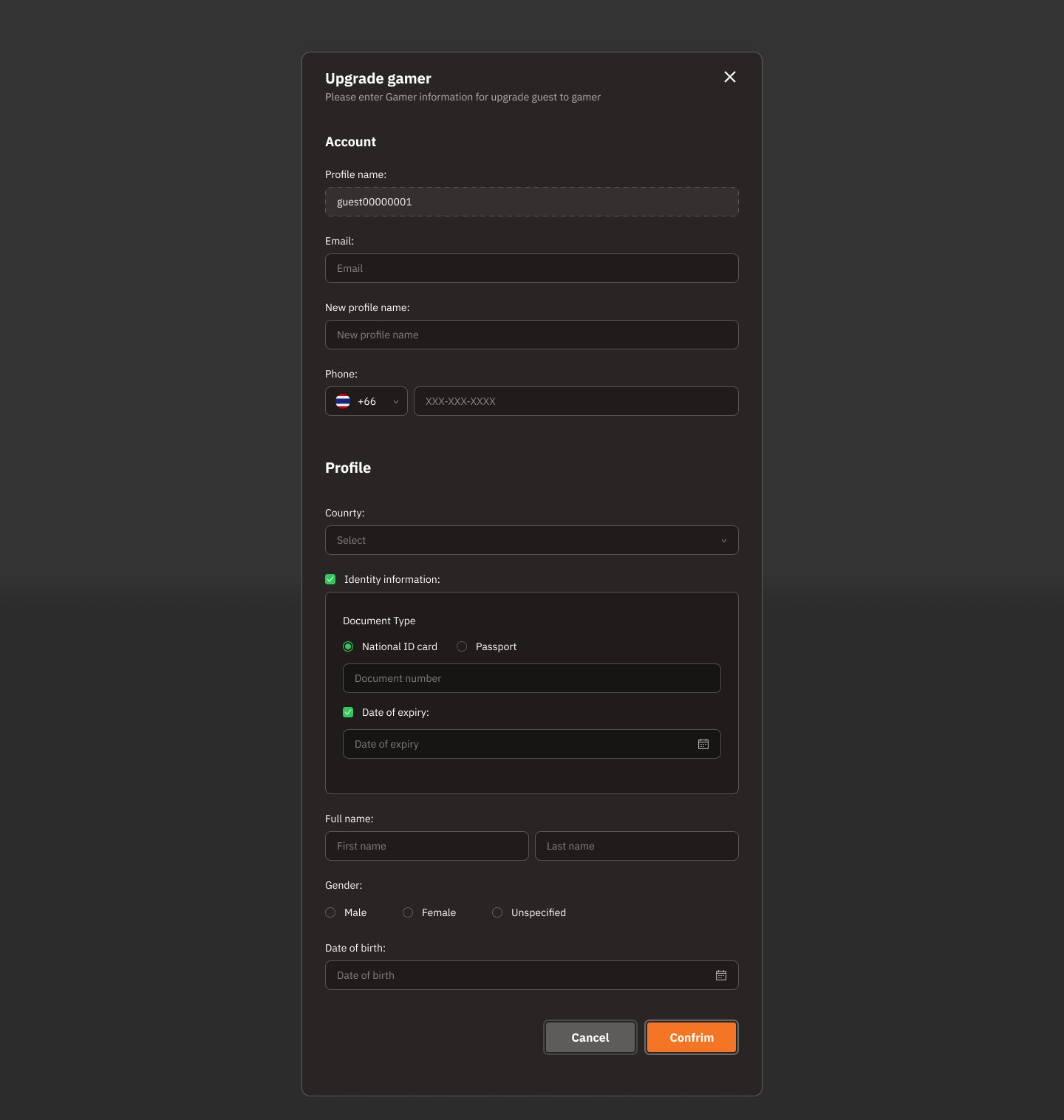
Account Upgrade (Guest to Gamer)
Account:
Profile name: Displays the existing Guest profile name (e.g., guest00000001).
Email: Field to enter email address (required for Gamer).
New profile name: Field to change the profile name for Gamer.
Phone: Field to enter phone number with country code selection (e.g., +66).
Profile:
Country: Field to select the Gamer's country.
Identity information:
Document Type: Select document type (National ID card or Passport).
Document number: Field to enter document number.
Date of expiry: Field to select document expiration date.
Full name: Field to enter first and last name.
Gender: Gender options (Male, Female, Unspecified).
Date of birth: Field to select the Gamer's birth date.
Action Buttons:
Cancel: Cancel the upgrade.
Confirm: Confirm the upgrade.
Close Icon (X):
Located in the top right corner of the screen to close the window.
Usage Steps:
Enter account information (email, phone number, and new profile name).
Enter personal information such as country, identification document, expiration date, name, gender, and date of birth.
Verify the accuracy of all information.
Click the "Confirm" button to proceed with the upgrade.
Verify OTP Email.
If you do not want to proceed, press "Cancel".
Benefits of Upgrading:
Change status from Guest to Gamer, enabling the storage of additional personal information.
Gamers may receive special privileges such as using Gaming Credit, saving play history, and promotions.
Was this helpful?
Still need help? Ask the team