New Pass
Gaming Credit Promotion Settings
This option, if you want to create game play time that is counted in minutes, will add game play time to the customer's account according to the amount of credit purchased.
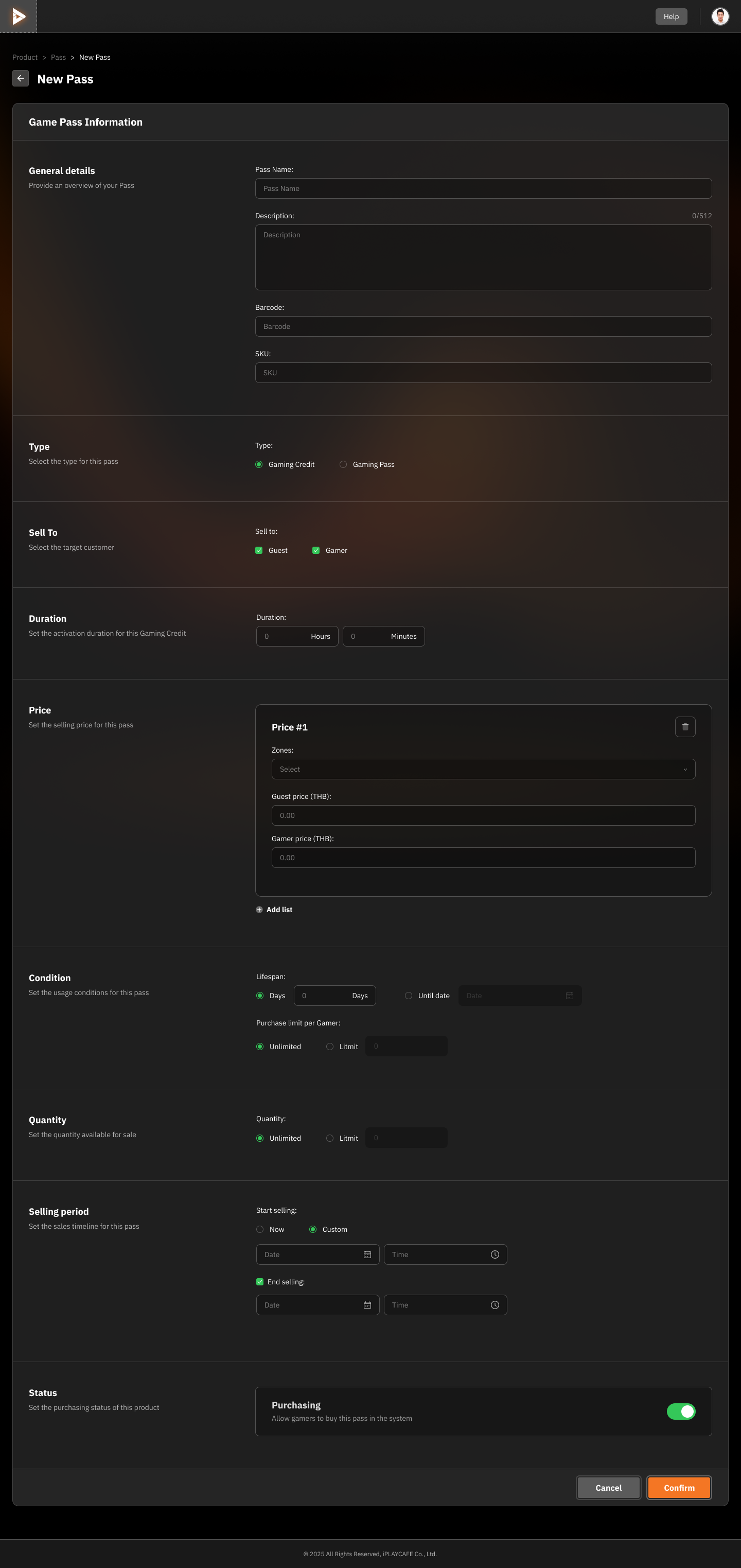
General Details
Pass Name: Enter the name of the promotion, for example, "1 Hour" or "Morning Pass."
Description: Add a description of the pass, such as the usage period or special privileges.
Barcode: Specify the barcode (if applicable).
SKU: Specify the Stock Keeping Unit (SKU) for product management.
Type
Select "Gaming Credit" for setting up game credit.
Sell To
Select the target group that can purchase this promotion:
Guest: Non-member customers.
Gamer: Member customers.
Duration
Set the usage duration of the promotion, for example:
Hours
Minutes
Price
Price:
Zones: Select the zones where the promotion can be used, such as Standard or VIP.
Guest Price (THB): Set the price for non-member customers.
Gamer Price (THB): Set the price for member customers.
Add List: Add price lists for additional zones or conditions.
Condition
Lifespan:
Specify the number of days the promotion can be used, or
Select "Until date" to set an expiration date.
Purchase Limit per Gamer:
Unlimited: No limit.
Limit: Set a specific limit.
Quantity
Set the number of promotions available:
Unlimited: No limit.
Limit: Set a specific number.
Selling Period
Start Selling:
Select "Now" to start selling immediately, or
Select "Custom" to specify the start date and time.
End Selling:
Specify the date and time to end the sale.
Status
Purchasing: Turn the promotion selling status on or off:
If on, players can purchase this promotion in the system.
If off, this promotion cannot be purchased.
Actions
Confirm: Click to save and create the new promotion.
Cancel: Click to cancel the promotion creation.
Gaming Pass Promotion Settings
This option, if you want to create game play time with a flat rate for a specified time period, this pass will give customers unlimited game play privileges within the specified time period.
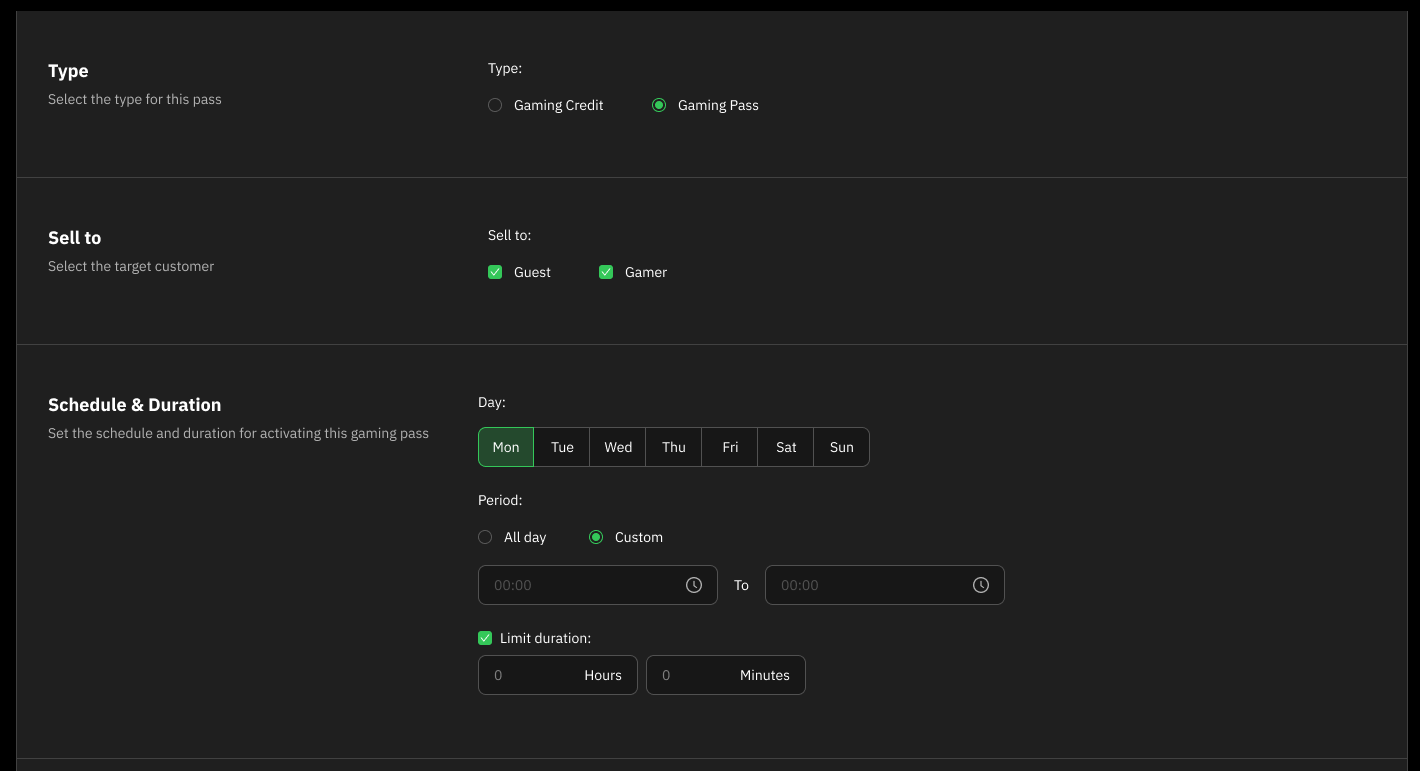
Type
Select "Gaming Pass" to set up a time-based game promotion.
Sell To
Select the target group that can purchase this promotion:
Guest: Non-member customers
Gamer: Member customers
Schedule & Duration
Day:
Select the day(s) for the promotion, for example, Monday - Sunday.
Period:
Select "All day" if you want it to be available all day.
Select "Custom" to set specific usage periods (specify start and end times).
Limit Duration:
Specify the number of hours and minutes that can be used within the specified time period.
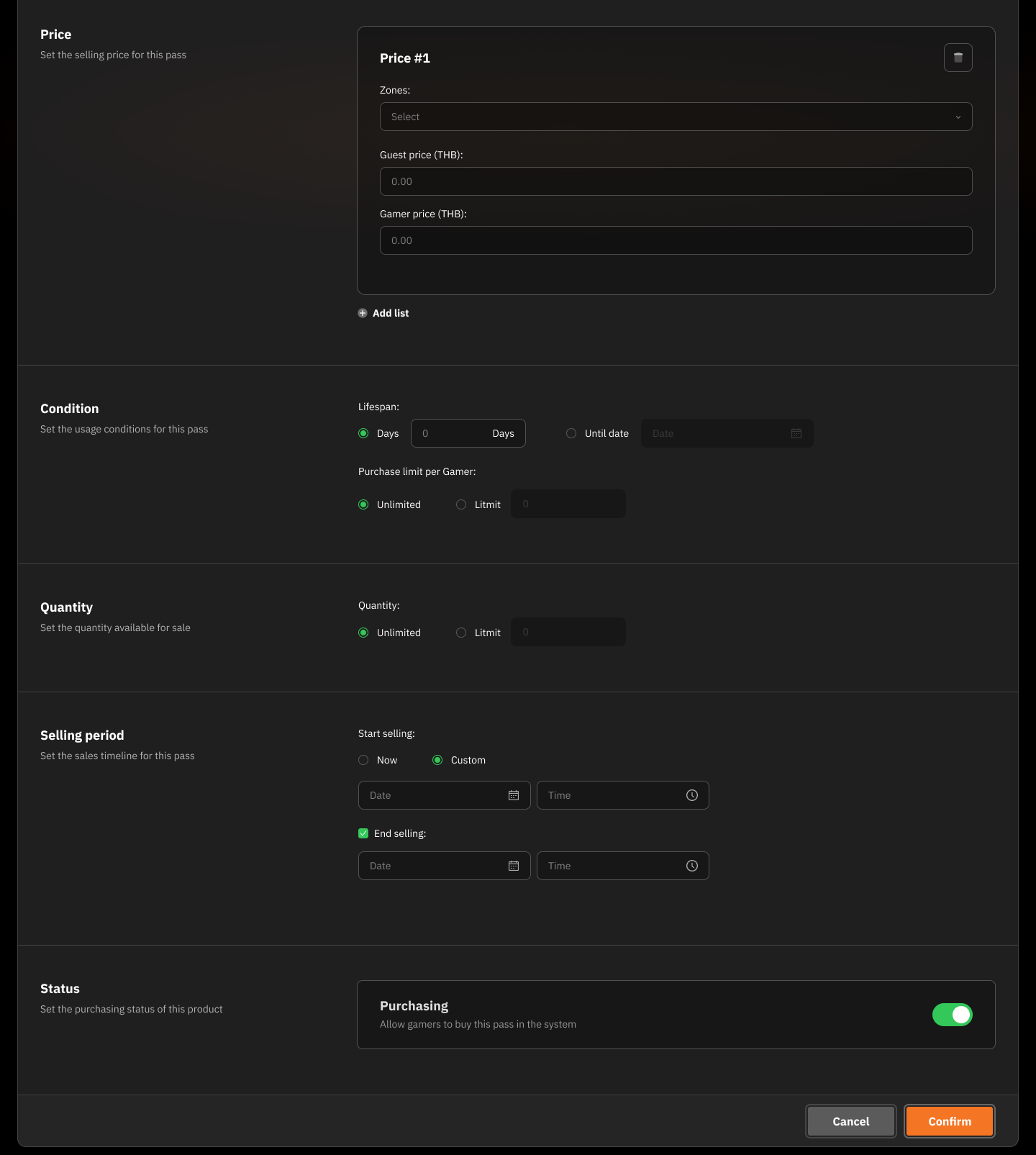
Duration
Set the usage duration of the promotion, for example:
Hours
Minutes
Price
Price:
Zones: Select the zones where the promotion can be used, such as Standard or VIP.
Guest Price (THB): Set the price for non-member customers.
Gamer Price (THB): Set the price for member customers.
Add List: Add price lists for additional zones or conditions.
Condition
Lifespan:
Specify the number of days the promotion can be used, or
Select "Until date" to set an expiration date.
Purchase Limit per Gamer:
Unlimited: No limit
Limit: Set a specific limit
Quantity
Set the number of promotions available:
Unlimited: No limit
Limit: Set a specific number
Selling Period
Start Selling:
Select "Now" to start selling immediately, or
Select "Custom" to specify the desired start date and time.
End Selling:
Specify the date and time to end the sale.
Status
Purchasing: Turn the promotion selling status on or off:
If on, players can purchase this promotion in the system.
If off, this promotion cannot be purchased.
Actions
Confirm: Click to save and create the new promotion.
Cancel: Click to cancel the promotion creation.
Was this helpful?
Still need help? Ask the team