Passes
Promotion Management (Table View)
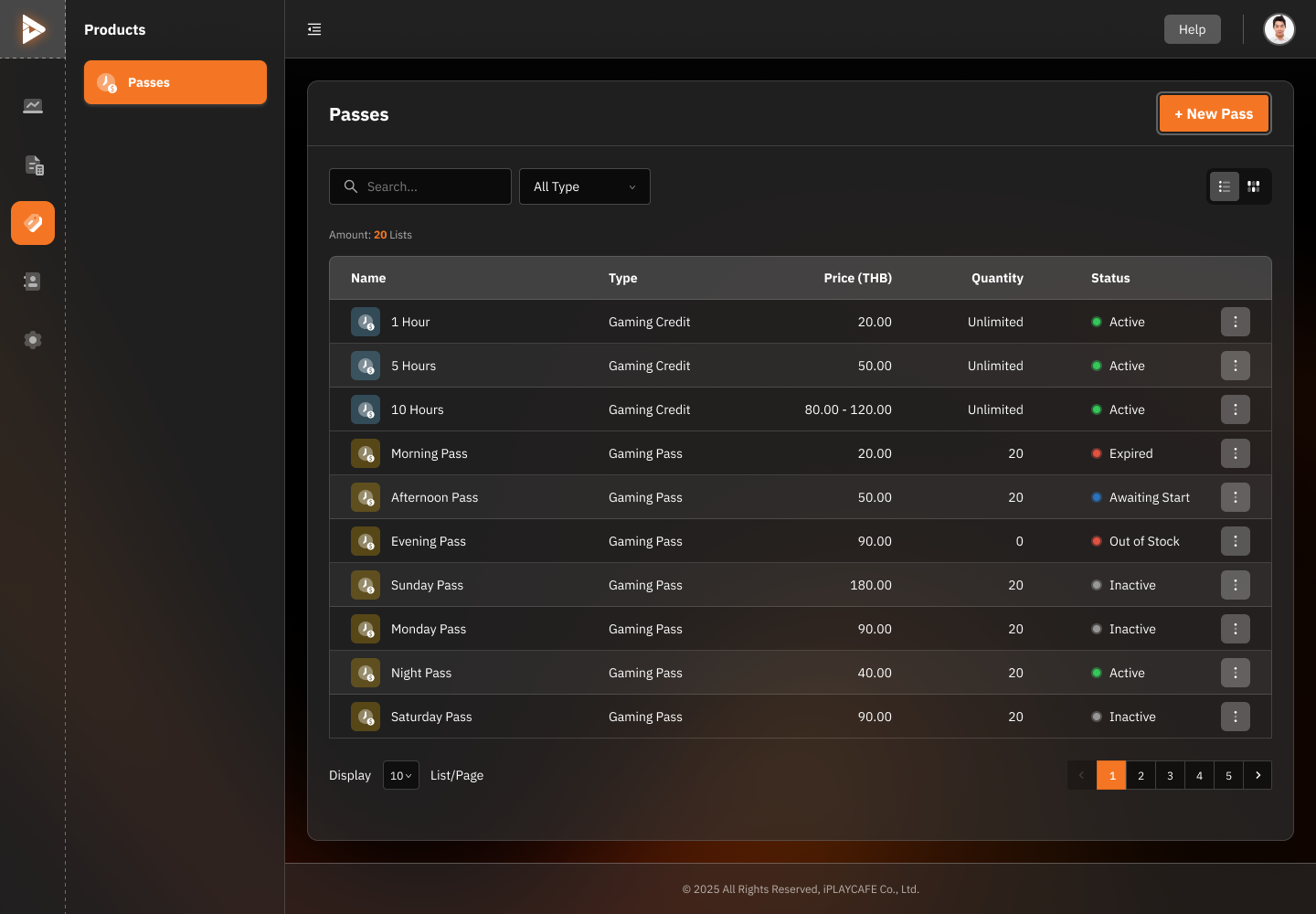
Search & Filter
Search:
Use the search box at the top to enter the term you want to search for, such as the promotion name ("1 Hour," "Morning Pass") or type.
All Type:
Click to select the promotion type:
Gaming Credit
Gaming Pass
Or select "All Type" to display all.
Amount:
Shows the total number of promotions in the list (e.g., 20 Lists).
Promotion Data Table (Passes Table)
Columns in the table:
Name: Promotion name (e.g., 1 Hour, Morning Pass)
Type: Promotion type (e.g., Gaming Credit, Gaming Pass)
Price (THB): Price of the promotion (e.g., 20.00, 80.00 - 120.00)
Quantity: Number of promotions remaining (e.g., Unlimited, 20)
Status: Promotion status:
Active: The promotion is available (displays a green dot).
Inactive: The promotion is not active (displays a gray dot).
Expired: The promotion has expired (displays a red dot).
Out of Stock: The promotion is out of stock (displays an orange dot).
Awaiting Start: The promotion is waiting to be activated (displays a blue dot).
Additional Functions:
Three-Dot Menu: Click this menu to see additional options, such as editing or deleting the promotion.
Creating a New Promotion (Create New Pass)
Click the "+ New Pass" button in the upper-right corner to create a new promotion:
Enter information about the promotion, such as name, type, price, quantity, duration, and status.
Click "Save" to save.
Display Options
Passes per page:
Choose the number of items you want to display on each page (e.g., 10 / Page).
Page Navigation:
Use the page options at the bottom to view more promotions (e.g., 1, 2, 3, ...).
Toggle View
Click the icon in the upper-right corner to switch between:
Card View: To view the information as individual promotion cards.
List View: To view the information in a table format.
Promotion Management (Card View)
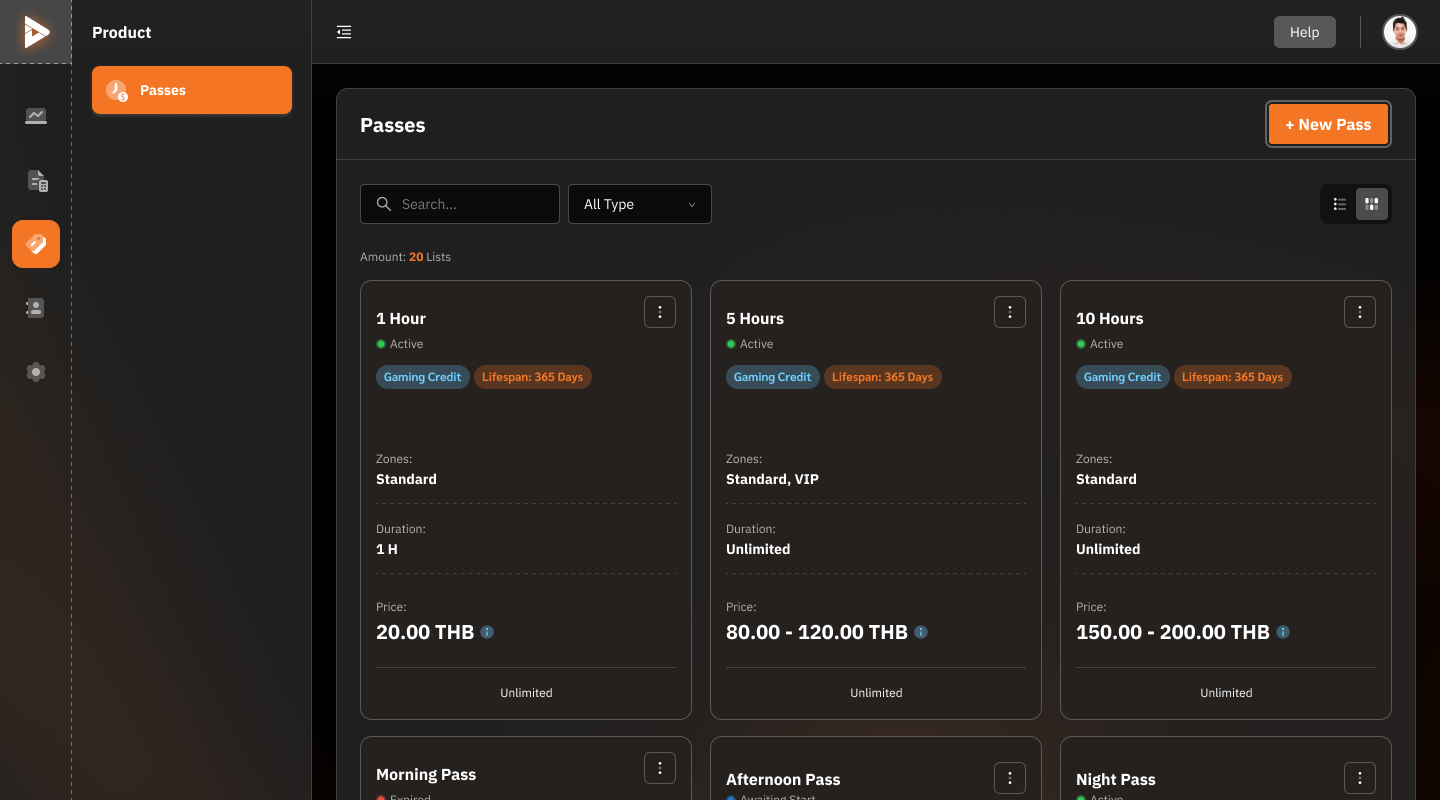
Search & Filter
Search:
Use the search box at the top to search for promotions by typing the name, such as "1 Hour," "10 Hours."
All Type:
Click to select the promotion type:
Gaming Credit
Gaming Pass
Or select "All Type" to display all.
Amount:
Shows the total number of promotions in the list (e.g., 20 Lists).
Card View Details
Name:
Displays the promotion name, such as 1 Hour, 5 Hours, Morning Pass.
Status:
Promotion status:
Active: Available (displays a green dot).
Expired: Expired (displays a red dot).
Inactive: Inactive (displays a gray dot).
Type:
Specifies the promotion type, such as Gaming Credit, Gaming Pass.
Lifespan:
Displays the lifespan of the promotion, such as 365 Days.
Zones:
Shows the zones where the promotion can be used, such as Standard, VIP.
Duration:
Displays the usage duration, such as 1 Hour, Unlimited.
Price:
Displays the price of the promotion, such as 20.00 THB, 150.00 - 200.00 THB.
Quantity:
Displays the available quantity, such as Unlimited.
Additional Functions:
Three-Dot Menu: Click to see options like editing or deleting the promotion.
Create New Promotion
Click the "+ New Pass" button in the upper-right corner to create a new promotion:
Enter information about the promotion, such as name, type, price, quantity, duration, and status.
Click Save to save.
Toggle View
Click the icon in the upper-right corner to switch between:
Card View: To view the information as individual promotion cards.
List View: To view the information in a table format.
Was this helpful?
Still need help? Ask the team