Forgot Password
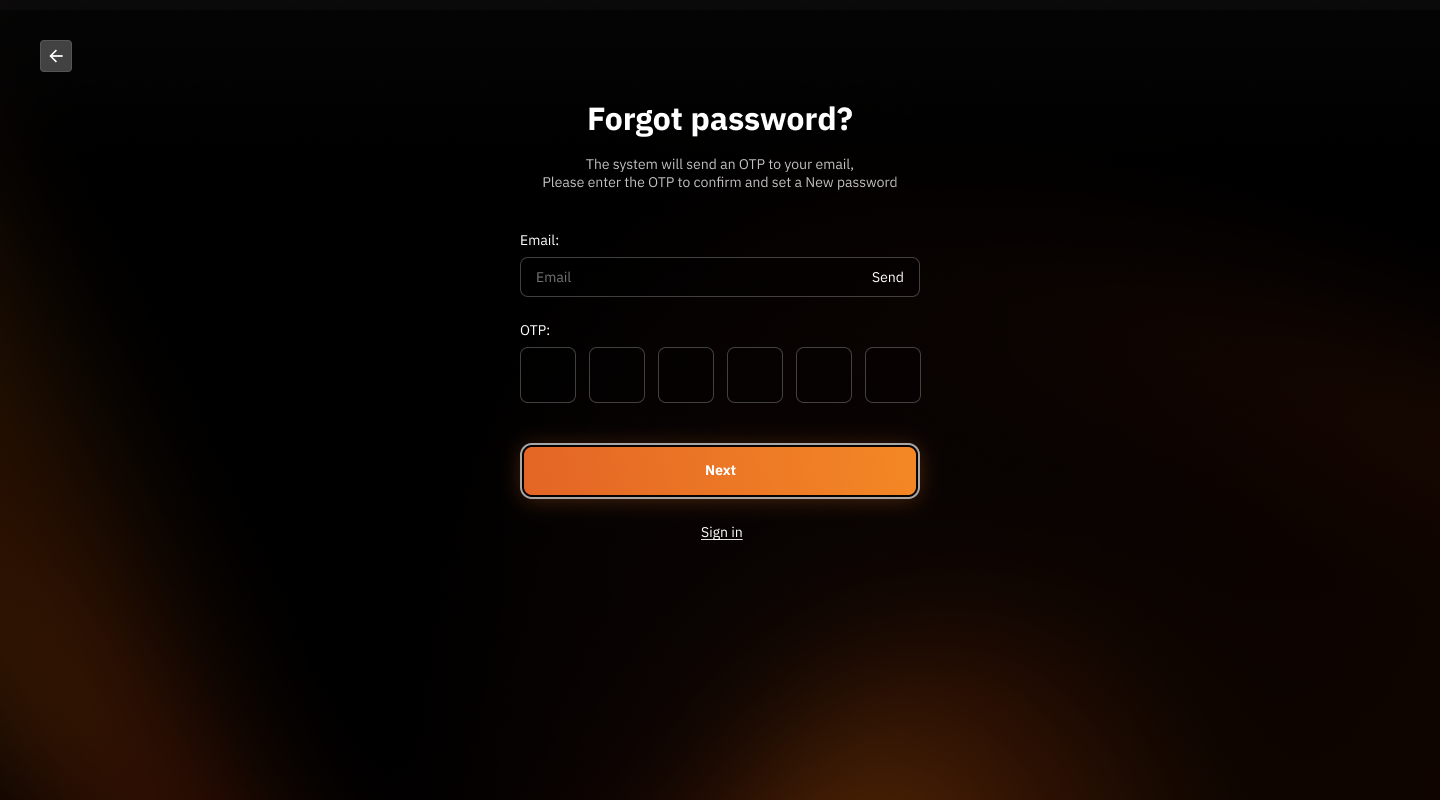
Email:
Enter the email address of the account you want to recover the password for in the "Email" field.
Click the "Send" button to have the system send an OTP code to your email.
OTP:
Open your email to check for the received OTP (One-Time Password).
Enter the 6-digit OTP code in the "OTP" field.
Ensure the OTP code is correct before proceeding.
Continue:
Click the "Next" button to proceed to the next step of setting a new password.
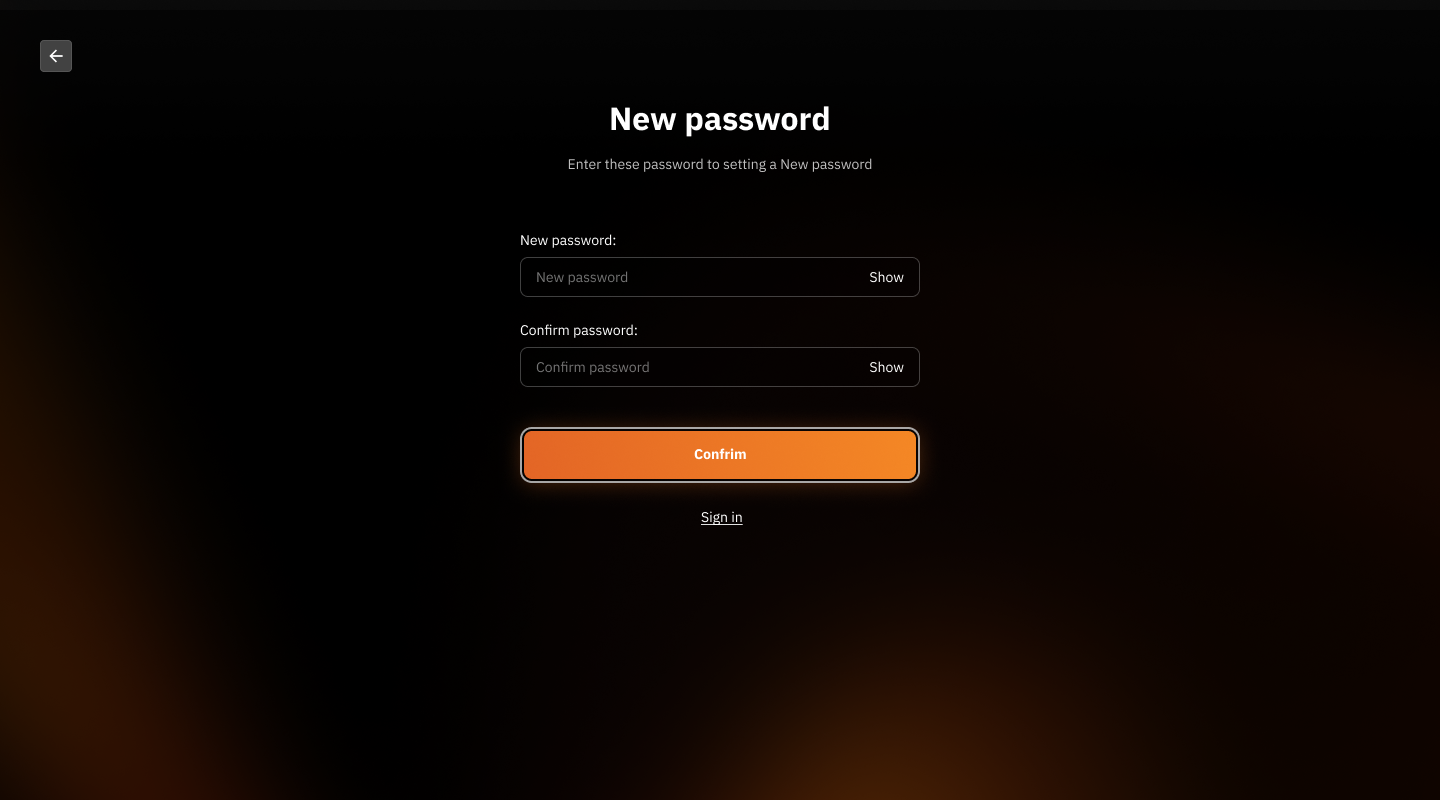
New Password:
Enter the new password you want to set in the "New password" field.
Click the "Show" button if you want to check the password you typed.
It is recommended to use a secure password, consisting of letters, numbers, and symbols.
Confirm Password:
Enter the same password that was set in the "New password" field.
Click the "Show" button if you want to check the password you typed.
Confirm Password Change:
Click the "Confirm" button to save the new password.
Return to Sign-in Page:
If you remember your password and do not want to recover it, click the "Sign in" link to return to the sign-in page.
Was this helpful?
Still need help? Ask the team