Recipts
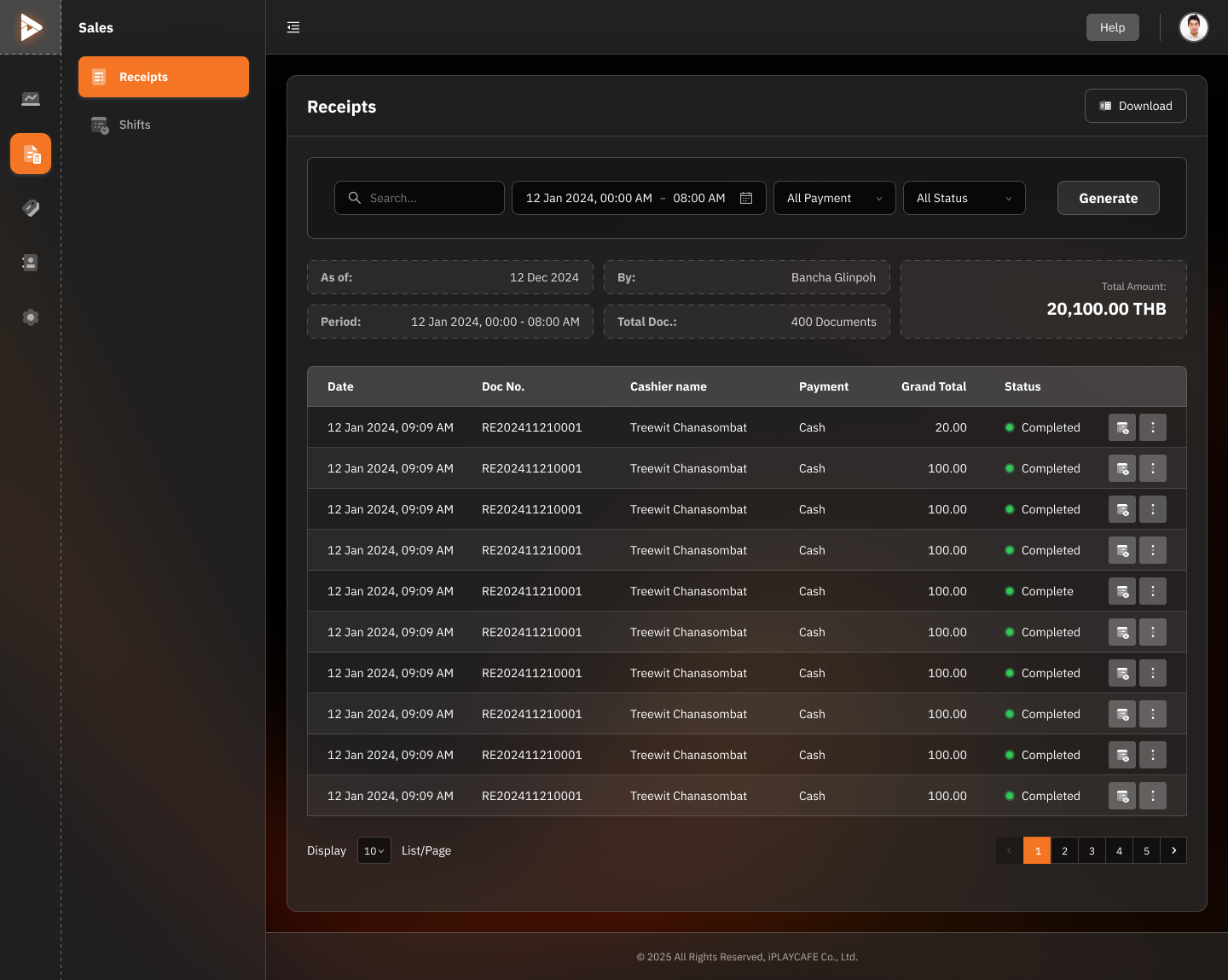
1. Search & Filter
Search:
Use the search box in the upper-left corner to enter the term you want to search for, such as document number (Doc No.), cashier name, or date.
Period:
Select the time period for which you want to view the data (e.g., 12 Jan 2024, 00:00 AM - 08:00 AM).
All Payments:
Select the payment type, such as Cash, QR-codes, or All Payments.
All Status:
Select the receipt status, such as Completed, Pending, or All Status.
Generate:
Click the "Generate" button to update the receipt list according to the selected filters.
2. Summary Information
As of: The date for which the data is being viewed (e.g., 12 Dec 2024).
By: The name of the manager in charge (e.g., Bancha Glinpoh).
Period: The selected time period.
Total Doc.: The total number of documents within the selected time period (e.g., 400 Documents).
Total Amount: The total amount within the selected time period (e.g., 20,100.00 THB).
3. Receipts List Table
Columns in the table:
Date: The date and time of the receipt.
Doc No.: The document number.
Cashier Name: The name of the cashier who processed the transaction.
Payment: The payment type.
Grand Total: The total amount of the receipt.
Status: The status of the receipt (e.g., Completed).
Additional Functions:
Print Icon: Click the printer icon to print the receipt.
More Menu (Three Dots): Click to see more options, such as viewing receipt details.
Display:
Select the number of items to display per page (e.g., 10 / Page).
Use the page options at the bottom to change pages (e.g., 1, 2, 3, ...).
4. Download
Click the "Download" button in the upper-right corner to download the report in a file format such as PDF or Excel.
Was this helpful?
Still need help? Ask the team